
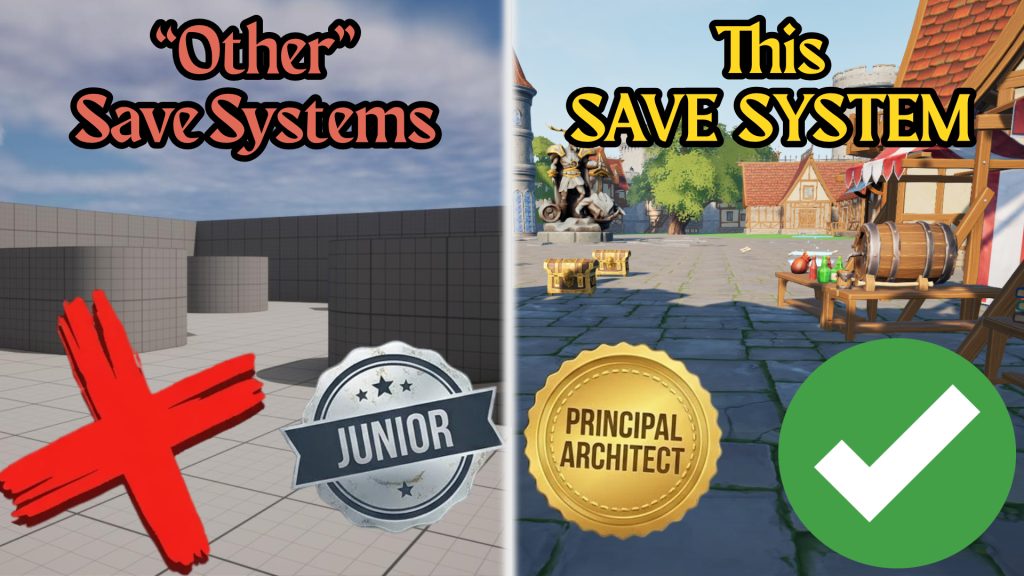
Unreal Engine Saving Masterclass 2026
Most Unreal Engine 5 tutorials teach you how to save a single boolean with a hard reference, call it a “system,” and send you on your way. But what happens when your game scales, your player walks out of a World Partition cell, the memory cache clears, and your actors vanish into the void?
We don’t build prototypes here. We build architectures. In this masterclass, we are constructing the exact data-driven, asynchronous save engine I use for Mandala: Element King. No frame hitches, no falling through floors, and zero data loss.
Here is the step-by-step Great Escape from broken save logic.
Level 1: The Junior Developer (The Container)
The Junior level is about understanding the “Post Office” of Unreal Engine. You are creating a package, labeling it, and driving it to the hard drive.
- 1. Create the Envelope: Create a
SaveGameBlueprint class (e.g.,BP_SaveGame). This is your specialized container designed to be serialized into binary data. - 2. Data Only: Never put an Object Reference inside your SaveGame object. It drastically increases the file size and slows down your game. Stick to pure data points like floats for Health.
- 3. The Safety Check: Never load blindly. Always use the
Does Save Game Existnode before loading or creating a new slot. Forcing the engine to read a null file is a one-way ticket to a hard crash. - 4. Commit to Disk: Use
Save Game to Slotto push the data to your saved games folder, andLoad Game from Slotto pull it back into RAM on startup.
The Problem: This works for a prototype, but hard-coding every single variable across a massive open-world RPG is completely unscalable. Time to level up.
Level 2: The Lead Developer (Data-Driven Architecture)
Lead Architects don’t work harder; they work smarter. We are moving away from hard-coding health bars and building a universal Registry.
- 1. The Master Struct (
S_SaveData): Create a blueprint structure to hold universal actor data.- Transform: The physical location in the world.
- Control Rotation: The camera direction for pawns.
- Inventory & Abilities: Arrays of Names/Strings (save the ID, not the object).
- Custom Data: Maps (String to Float, String to Bool) for modular stats like Health or “Is Chest Open”.
- 2. The Interface Handshake (
BPI_SaveGame): Create a Blueprint Interface with functions likeRequestSave,SaveActorData,LoadActorData, andRemoveFromSaveMap. This allows communication without messy hard-casting. - 3. The Game Instance: The Game Instance is the only class in Unreal Engine that survives level transitions. Create a Map variable inside it (String to
S_SaveData) to act as the central hub holding all your actor data while the game runs.
Level 3: The Senior Developer (Modularity & Identity)
Senior Developers build for scale. We need to make this system plug-and-play for any actor in the world and ensure they don’t lose their minds when World Partition unloads them.
- 1. The Component (
BPC_SaveGame): Create an Actor Component to house your save logic. You write the script once, plug it into any actor (a player, a crate, a chest), and it simply works. - 2. The True ID (
GetObjectPathString): Standard GUIDs randomize every time you launch the game, making them useless for persistence. Display names (likeBP_Crate_C_0) will duplicate if you spawn a crate in a cave and another in the grasslands, overwriting your data. UseGetObjectPathString—it includes the level hierarchy, giving every actor a permanent, unique “Social Security Number”. - 3. The
EndPlayHandshake: UseEvent EndPlaywith aSwitch on EEndPlayReason. If an actor isDestroyed(e.g., a smashed pot), callRemoveFromSaveMapto clean up your Game Instance map so it doesn’t waste memory. - 4. The Physics Root Fix: If your actor simulates physics (like a movable crate), make sure the Static Mesh is the Root Component. If the mesh is a child, the Actor Transform won’t update when it rolls, and your save system will load it in the wrong location.
Level 4: The Principal Architect (Performance & The Void)
The Principal Architect understands that performance is the ultimate feature. If your game stutters during an autosave, your architecture is failing.
- 1. The Async Shield: Swap out the standard blocking save node for
Async Save Game to Slot. This moves the heavy binary conversion to a background thread, keeping your gameplay locked at a smooth 60 FPS even when saving 2,000 actors. - 2. The Async Message System: To avoid tangled casting, enable the experimental Async Message System plugin. Create Gameplay Tags (like
System.SaveGame) and broadcast them from the Game Instance. Have your components listen for these tags to trigger their package data functions cleanly. Make sure to delay until the next frame to give actors time to package their data before writing to the disk. - 3. Building Autosaves: Create a
BP_AutosaveVolumeusing a Box Collision. When overlapped, verify the actor is a Player State, then broadcast your save tag. Crucially, add a cooldown timer (e.g., 10 seconds) so players running back and forth over the line don’t infinitely trigger saves and crash your thread. - 4. The Hard Audit: The World Partition editor will try to trick you with warm caches (the orange “Unloaded Still Around” grid). Moving an object, saving, closing the engine completely, and reloading is the only 100% undeniable proof that your architecture is actually persisting data.
Join the Community Drop the corporate tutorial grind and join a real network of developers. Head over to https://takengrace.com/ to access the developer forums, unlock membership tiers, check out the dev blog, and grab the project files to dissect this code yourself.
Join our Discord Community as well to learn and grow with other game develepers
TG Realm Discord
Keep Learning Until You Game Over.
– Taken Grace